Making Google Early Flybys
Something I wanted to do for my holiday stuff was to create "fly overs" of the routes and where I went. This is used on TV for cycle races where the route is displayed and a line flies over it to show the route, something like this (mine just isn't quite as slick)
Wasn't sure if I'd include this at the end of the blog or at the beginning, I decided the beginning so people knew what the thinking was and how it all came together, process wise.
This process has been SO worth it in my mind. When watching the routes I can remember so much more about my cycles/hikes than I would have otherwise. Things like why I made mistakes, what caused me to stop at places, things I saw etc. So I'm sure pleased I did this. I'm going include it in each post.
So I started to figure out how I could do that. I record all my exercise in Strava and they have an export GPX option on the map so that was the 1st step. I always have everything recorded there, so that was nothing new, the odd time I forgot to start it, but that is only after certain situations. Basically ... if you do a ride then stop and do a walk and the carry on the ride, you can't pause the 1 type of activity and do another you have to stop and start totally, or loose out the 1 thing. I chose to loose the walk/middle item. Also with the cycling there is an auto pause, but if you are walking/hiking then that sees movement and starts it but as the cycle, so I turned off auto pause for those cases BUT, you then need to remember to manually start the ride again/toggle that option back on.
- Save the GPX from Strava/your recording tool.
- Edit the GPX with any text editor and find the <name>Ride to somewhere</name> tag and remove the description and replace it with a dot, on the Mac I used Option+8 for that, so I was left with
• this is what will be the focal point when it flies along, so I just wanted a blob, not a word/icon. - I used the free desktop app Google Earth Pro, download here if you dont have it.
In the preferences/settings the tab we are interested in is "Touring". Start by resetting the values to defaults. I then adjusted the values as per the following screenshot
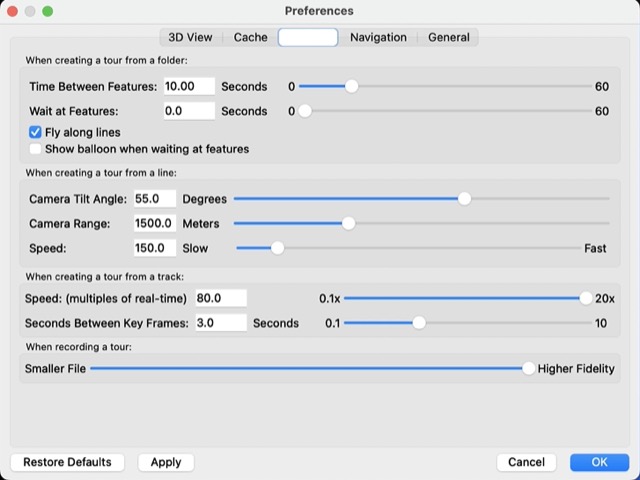
I had to lower the Camera Tilt Angle in some cases when there were mountains that blocked the tracking I found dropping it by 5 at a time was the best to see optimal results. For my walks which were shorter and you'd like to see closer maybe I changed the Camera Range to 750. The Speed only lets you have 20x from the slider but you are able to enter 80 into the box, so I did that.
- From the File menu, load the GPX and accept the defaults for the GPS Data Import dialog. This will then load your GPX and zoom to it on the globe.
-
Right click on the "GPS Device" option under Temporary Places, and select Get Info. You can name it if you want but it's not relevant, I did so I knew what I was working on.
On the Style/Color tab change the line colour to a colour of your choice, I chose Red.
Then click on the Icon/box to the right of the Name field and choose No Icon. This will make things clearer. The icons tend to rotate I found and looked a bit weird.
Back in the main UI on the bottom left, in the Layers view I had the following turned on. Borders & Labels, Labels & 3D Buildings, Photorealistic & Terrain.
The next steps are how I did things, I'm not 100% sure if all steps are needed but are good to see what you are going to get.
- Click on the folder with a > sign on it in the middle right, it is the Play Tour icon. This will then play your tour so you can preview what it will be like. Wait for it to finish, my thought is that if nothing else it will be caching some content.
You can scrub backward and forward through your tour if you want to as well. This is where you will get to see if you want to tweak any of the preferences to more suit what you are doing.
- Right click on your Temporary Place name (from Step 5 above) and Choose Add, Tour. This will then display a Record Button & Microphone and a timer above the control slider at the bottom left of the map.
- Click on the Record button and then Play below it. This will tend to start from the end of the tour and rewind it ot the start and then start it. You can press Play and then record when it gets closer to the start otherwise. I found I just did it as is and then trimmed the video elsewhere. You should know how long the tour will be, once the Tour has finished press the Red record button again to stop. Then press the Disk/Save icon to save the Tour, you will then see a new item in the Temporary places. Then close the slider at the bottom left of the map.
- From Tools menu, choose Movie Maker and select the options that are best for your use case. I chose the highest resolution (under Video parameters) and maximum picture quality. This then creates the file on disk for you. This is a time intensive process so leave it and carry on with other work/come back later and it will be done.
You are done ... there is nothing more to do. You now have the video file. In my case I then uploaded it to Youtube and trimmed off the start "rewind" bit that I didn't want. There were also places where I had stopped for a while and didn't want in the video so cut those out as well on Youtube Studio.